For many gamers, especially those juggling work and family, understanding game performance is key to truly enjoying their limited playtime. When diving into the vast worlds of Roblox, experiencing smooth gameplay without frustrating lag spikes or frame drops is paramount. This guide will navigate you through the simple yet crucial steps of activating and understanding the built-in FPS counter in Roblox, helping you diagnose performance issues and optimize your experience. We'll cover everything from basic activation to interpreting the data and implementing quick fixes to boost your frame rate. Whether you play on a high-end PC or a more modest setup, knowing your FPS can transform your gaming sessions, ensuring that your precious gaming moments are spent having fun, not fighting technical glitches. Discover how to enhance your Roblox adventures and maintain optimal performance for a consistently enjoyable experience, balancing your passion for gaming with life's other demands.
How do I activate the FPS counter in Roblox on PC?
To activate the **fps counter roblox** on your PC, simply launch any Roblox game and then press the **Shift + F5** keys simultaneously. This keyboard shortcut will toggle a small overlay in the top-left corner of your screen, displaying your current frames per second and other useful performance statistics. You can press Shift + F5 again to hide it.
What is a good FPS to aim for when playing Roblox?
For a smooth and enjoyable Roblox experience, aiming for a consistent 60 FPS is generally considered ideal. Many players find 30 FPS acceptable, especially on less powerful hardware, but 60 FPS offers a noticeably more fluid and responsive gameplay. Anything consistently below 30 FPS will likely feel choppy and lead to frustration, impacting your ability to enjoy games or compete effectively.
Why is my Roblox FPS low, and what are common fixes?
Low Roblox FPS can stem from various issues, including outdated graphics drivers, a slow internet connection (though this impacts ping more than raw FPS), too many background applications, or demanding in-game graphics settings. Common fixes include updating your GPU drivers, closing unnecessary programs, lowering Roblox's in-game graphics quality, ensuring Roblox is installed on an SSD, and checking for system-wide malware or bloatware that consumes resources.
Can I see my ping (latency) along with my FPS in Roblox?
Yes, the built-in **fps counter roblox** overlay, activated by Shift + F5, also displays your ping or latency in milliseconds (ms). This number represents the time it takes for data to travel from your computer to the Roblox server and back. A lower ping is always better for online responsiveness, with anything under 50ms considered excellent for competitive play and under 100ms generally good for most social experiences.
Does Roblox have graphical settings that impact FPS?
Absolutely! Roblox has in-game graphics settings that significantly impact your FPS. You can access these settings by pressing the Esc key during gameplay and navigating to the Settings tab. The 'Graphics Quality' slider is the primary control; lowering it reduces the visual fidelity but substantially boosts your frame rate. Other settings like 'Graphics Mode' (Automatic, Manual) can also be tweaked to optimize performance for your specific hardware.
Is there a way to limit or cap my FPS in Roblox?
Roblox itself does not provide an in-game option to directly limit or cap your FPS. However, you can often achieve this through your graphics card's control panel (e.g., NVIDIA Control Panel or AMD Radeon Software) by setting a global or application-specific FPS limit. This can be useful for reducing GPU heat or power consumption if your system is consistently achieving very high frame rates, though it's less common for Roblox users than for more demanding games.
What's the difference between FPS and refresh rate for Roblox gamers?
FPS (Frames Per Second) is how many frames your graphics card renders per second, while refresh rate (measured in Hz) is how many times your monitor can display a new image per second. For Roblox gamers, a high FPS is useless if your monitor's refresh rate is low (e.g., 60Hz monitor with 120 FPS game). Ideally, your FPS should match or exceed your monitor's refresh rate for the smoothest visual experience, with 60 FPS on a 60Hz monitor being a common baseline for fluid gameplay.
Hey fellow gamers! Ever jumped into your favorite Roblox experience, ready to unwind after a long day of work or managing family life, only to find your game chugging along like a rusty robot? That sudden stutter or delayed response isn't just annoying; it can totally derail your precious gaming escape. We get it. For many of us, gaming isn't just a hobby; it's a vital way to relax, connect with friends, or even build a few skills. And when performance issues strike, especially on a platform as dynamic and popular as Roblox, it can feel like a real time-waster.
You're not alone in wanting a smooth experience. Recent US gaming stats show that roughly 87% of gamers play regularly, often averaging 10+ hours a week. A significant portion of this demographic, particularly those in their mid-30s, balances their passion for gaming with jobs and family responsibilities. They value every moment they get to game, so a flawless experience isn't just a luxury; it's a necessity. That's why understanding your game's performance, starting with your **fps counter roblox**, is so crucial. It’s like having a diagnostic tool built right into your gameplay, offering immediate insights into what might be going wrong.
This article is your friendly guide to mastering the Roblox FPS counter. We'll show you exactly how to enable it, what all those numbers mean, and, most importantly, what to do when your frames per second aren't quite up to snuff. We're here to help you optimize your Roblox adventures, ensuring your time online is spent having fun, not wrestling with technical glitches. Let's dive in and get you back to smooth, enjoyable gaming!
What is an FPS Counter and Why Does it Matter in Roblox?
FPS stands for Frames Per Second, and it's a measurement of how many individual images your computer or device is displaying in one second. Think of it like a flipbook: the more pictures you flip through per second, the smoother the animation appears. In gaming, a higher FPS means a smoother, more responsive, and more immersive experience. For Roblox, which hosts millions of user-created games ranging from simple simulations to complex action-RPGs, having a good FPS is critical.
Why does it matter for Roblox players? Because a low FPS can lead to noticeable lag, stuttering, and input delay. This makes fast-paced games frustrating and even cozy social experiences feel clunky. For gamers balancing life and play, every second counts. You don't want your limited gaming time wasted on a choppy experience. Knowing your FPS helps you immediately identify if a performance issue is due to your device, your internet connection, or perhaps the Roblox game itself. It's the first step in problem-solving and optimizing your gameplay.
How Do I Enable the FPS Counter in Roblox on PC?
Enabling the **fps counter roblox** on a PC is incredibly simple, requiring just a quick keyboard shortcut. This built-in tool provides essential performance data without needing any third-party software, keeping your system clean and secure. Here's how you do it:
Launch Roblox: Start any Roblox game or experience on your PC.
Use the Shortcut: Once you're in the game, press Shift + F5 simultaneously on your keyboard.
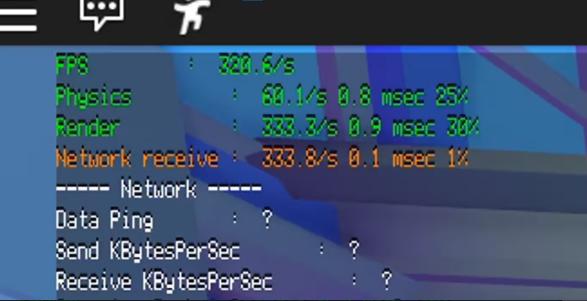
Observe the Overlay: A small, transparent overlay will appear in the top-left corner of your screen. This is your Roblox performance statistics panel, including the FPS counter.
Toggle On/Off: You can toggle this display on and off anytime during your game by pressing Shift + F5 again. It's that easy!
This method works consistently across most Roblox games and provides real-time feedback, allowing you to monitor performance as you play. For those on Mac, the shortcut is typically Shift + Fn + F5 if your F-keys require the function modifier.
What Do the Numbers on the Roblox FPS Counter Mean?
Once you've enabled the **fps counter roblox**, you'll see a small overlay with several pieces of information. While your FPS number is the most prominent, understanding the other stats can provide a deeper insight into your game's performance:
FPS (Frames Per Second): This is the most crucial number. It tells you how many frames your system is rendering per second. Higher numbers are better. Generally, 60 FPS is considered the gold standard for smooth gameplay.
Ping/Latency (ms): This indicates your network latency, or how long it takes for data to travel from your computer to the Roblox server and back. A lower number here is better, as high ping causes noticeable lag. For social games, keeping ping under 100ms is ideal, but for competitive games, you want it as low as possible, ideally under 50ms.
Memory Usage (MB): This shows how much RAM Roblox is currently using. High memory usage could indicate a memory leak in the game itself or that your system is running low on available RAM, leading to performance dips.
GPU/CPU Usage (%): In some more detailed overlays, you might see an estimate of your graphics card (GPU) and processor (CPU) utilization. These percentages tell you how hard your hardware is working. If one is consistently at 90-100%, it's likely a bottleneck.
By monitoring these values together, you can pinpoint whether your performance issues are graphics-related, CPU-bound, or network-dependent. This helps immensely when troubleshooting.
What is a Good FPS for Roblox and How Can I Achieve It?
When it comes to a
Easily activate Roblox FPS counter with Shift+F5. Understand what frames per second mean for smooth gameplay. Learn to diagnose and fix low FPS issues in Roblox. Optimize settings for better performance. Essential tool for all Roblox players for a smoother experience. Check ping and other performance stats. Improve gaming quality on PC and mobile devices.
35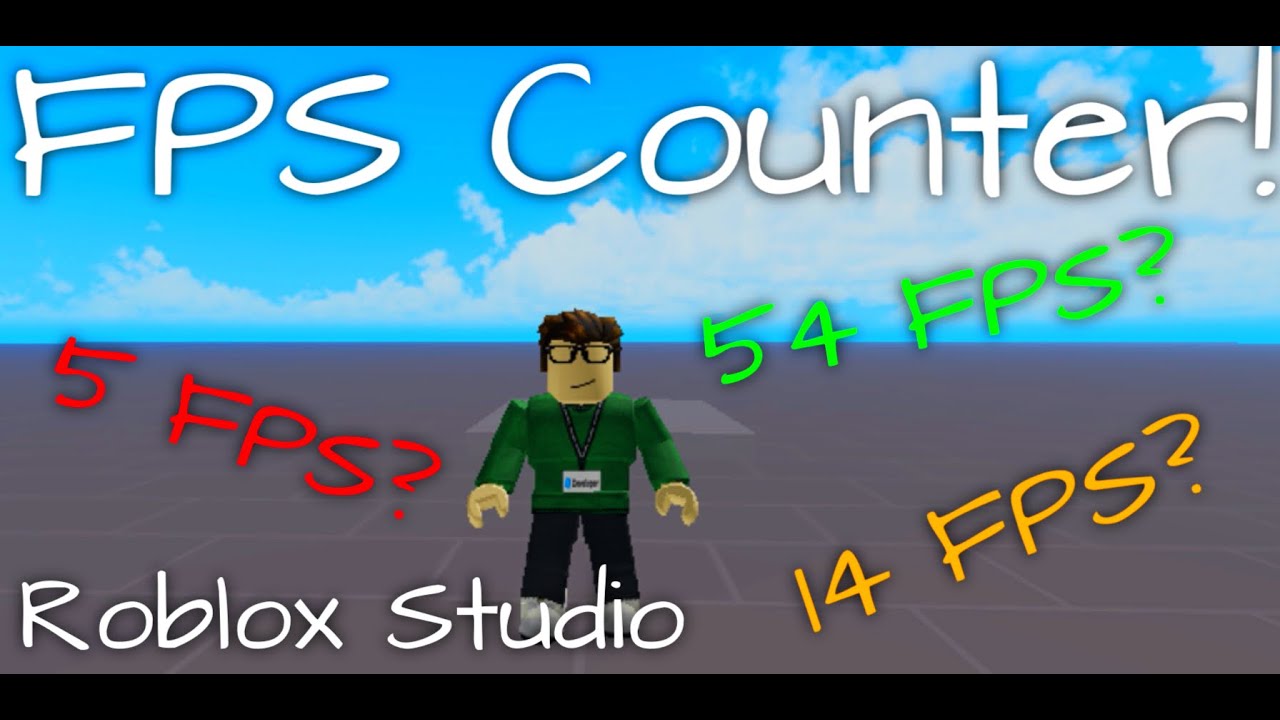


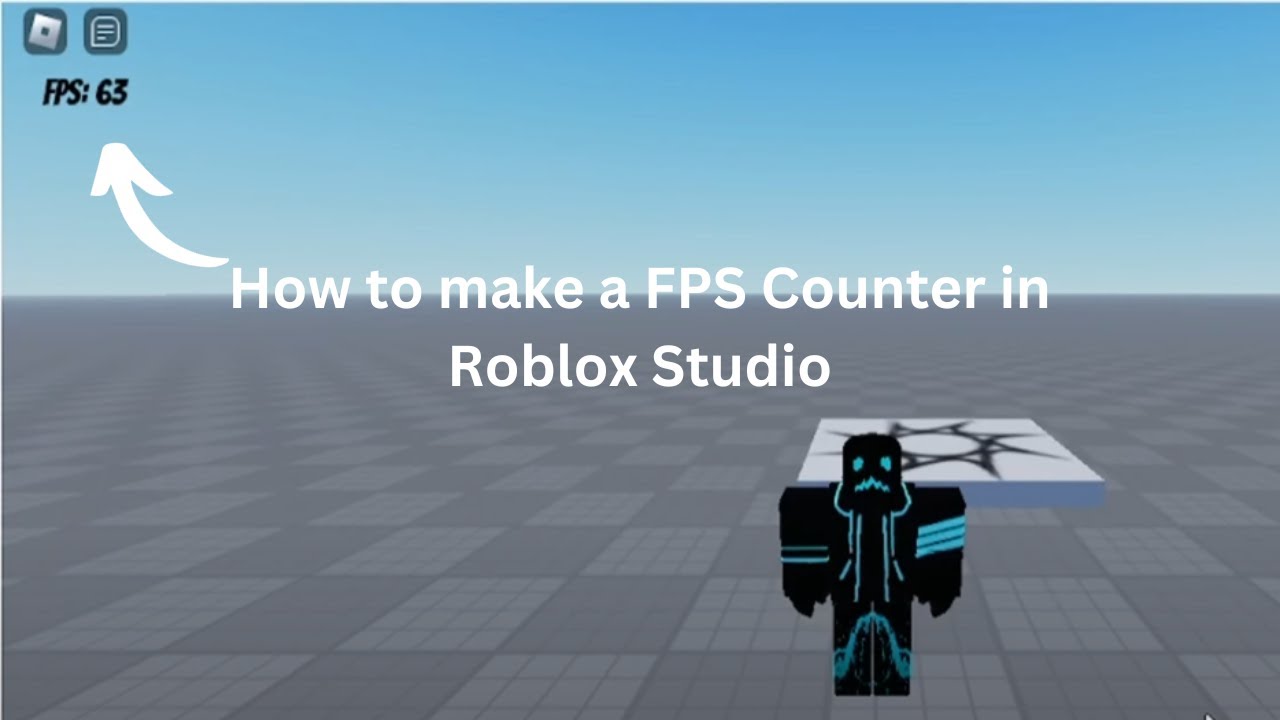
How To Make A FPS Counter In Roblox Studio YouTube . How To Make A Fps Counter Roblox Studio YouTube . How To Add An FPS Counter In Roblox Studio Full FPS COUNTER GUIDE Use . How To Make A FPS Counter In Roblox YouTube . How To Make A FPS Counter In Roblox Studio YouTube

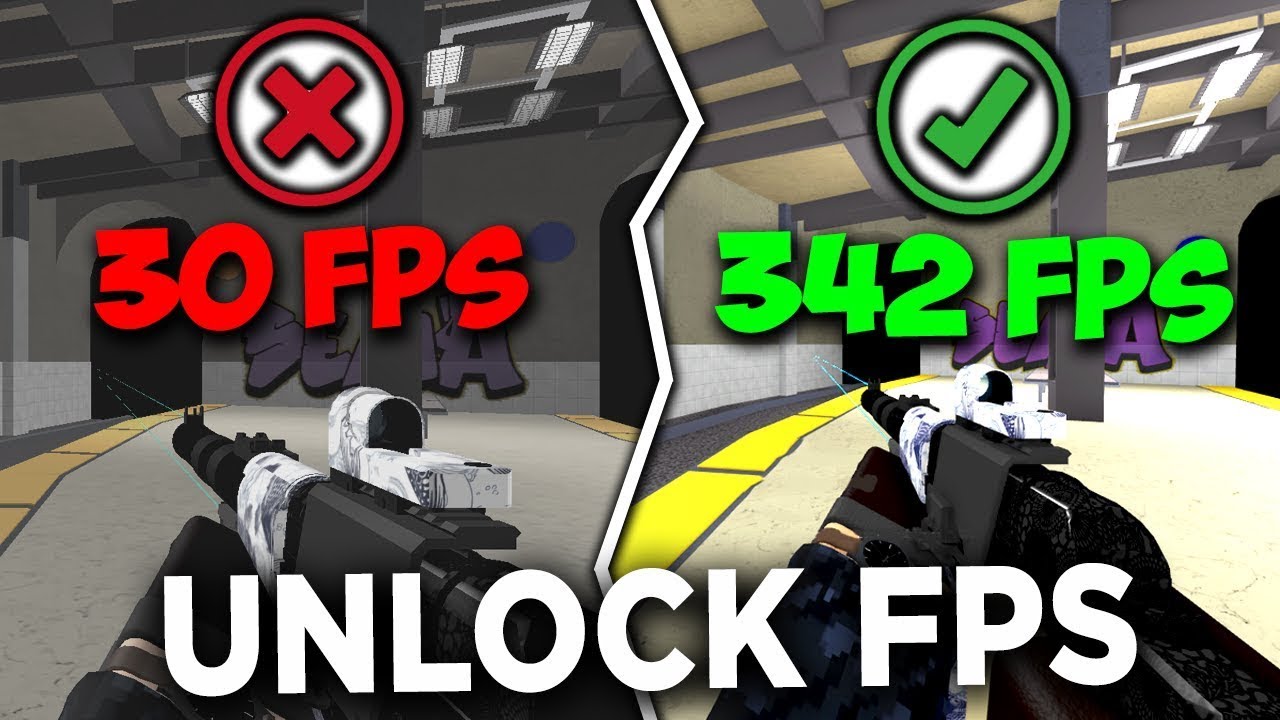


How To Get A Fps Counter In Roblox At JENENGE Blog . BEST Roblox FPS Unlocker 2025 How To Get More FPS In Roblox Stop . Roblox FPS Codes 2026 Round About To Start In Counter Blox . Roblox Fps Checker Counter Script For Pc And Mobile YouTube Hqdefault . THE ULTIMATE ROBLOX FPS Guide How To Get More FPS In Roblox Best


Top 10 FPS Shooters On Roblox MyGameDesk Com June 2026 NoFilter. How To Script FPS Display Counter In Game Roblox Studio YouTube . 6 Best Roblox FPS Unlockers Jun 2026 Boost Gaming FPS Best Roblox FPS Unlockers 2025 Boost Gaming FPS 768x512 . How To Make A FPS Counter In Roblox Studio 2022 YouTube . How To Make An FPS Counter Roblox Studio Tutorial YouTube Hqdefault


How To Get A Fps Counter In Roblox At JENENGE Blog . Make An FPS COUNTER In Roblox Studio YouTube . How To Make A FPS Counter In Roblox Studio 2022 E4i6zwUC1p0. Roblox FPS Unlocker Webp. How To Add A FPS COUNTER To Your Roblox Game YouTube


Best Roblox FPS Games In 2026 Pillar Of Gaming Best Roblox FPS Games In 2022 300x169 . ROBLOX FPS ARTIRMA EN G NCEL 2026 YouTube . Best Roblox FPS Games In 2026 Pillar Of Gaming Counter Blox . How To Make FPS Counter Roblox Studio YouTube Hqdefault . Best Roblox FPS Games June 2026 Gamer Journalist Best Roblox FPS Games

How To UNLOCK Roblox FPS Boost 2026 UPDATED YouTube . Os 12 Principais Jogos FPS Do Roblox Para Come Ar A Atirar Em 2026 Counter Blox . Roblox FPS Unlocker 2026 Boost FPS From 60 To 240 Easy Guide YouTube . How To Add An FPS Counter Into Your Roblox Game Roblox Studio YouTube . How To GET BETTER FPS In Roblox FAST 2026 YouTube



How To Make Fps Counter In Roblox Studio Tutorial Oardefault . How To Get A Fps Counter In Roblox At JENENGE Blog ROBLOX FPS Screenshot 1024x669 . How To Make A FPS Counter In Studio Lite Easily Step By Step And Also Hqdefault . T L Chargez Les Meilleurs Roblox FPS Unlockers 2026 Obtenez Plus De FPS Check Roblox Fps . How To Get More FPS In Roblox Best Settings For FPS No Delay NEW