Gaming is a fantastic way to connect with friends unwind after a long day or even sharpen your skills and platforms like Roblox have become central to this social experience for millions of US gamers With an average age of 36 many gamers balance their virtual adventures with jobs families and daily responsibilities making social interactions within games vital for stress relief and camaraderie However sometimes misunderstandings or accidental clicks lead to blocking a friend or another player inadvertently cutting off that connection Suddenly you are left wondering how do you unblock someone on Roblox to rejoin their game chat or simply continue building worlds together This comprehensive guide is specifically designed for you the busy gamer who values clear practical solutions without the hype We will walk you through the precise steps to reverse a block on Roblox whether you are on PC mobile or console ensuring you can quickly restore your social connections and get back to the fun No more navigating confusing menus or losing valuable game time just straightforward actionable advice so you can maintain those important in-game friendships and avoid unnecessary downtime
How Do I Unblock a Friend on Roblox Using My PC or Browser?
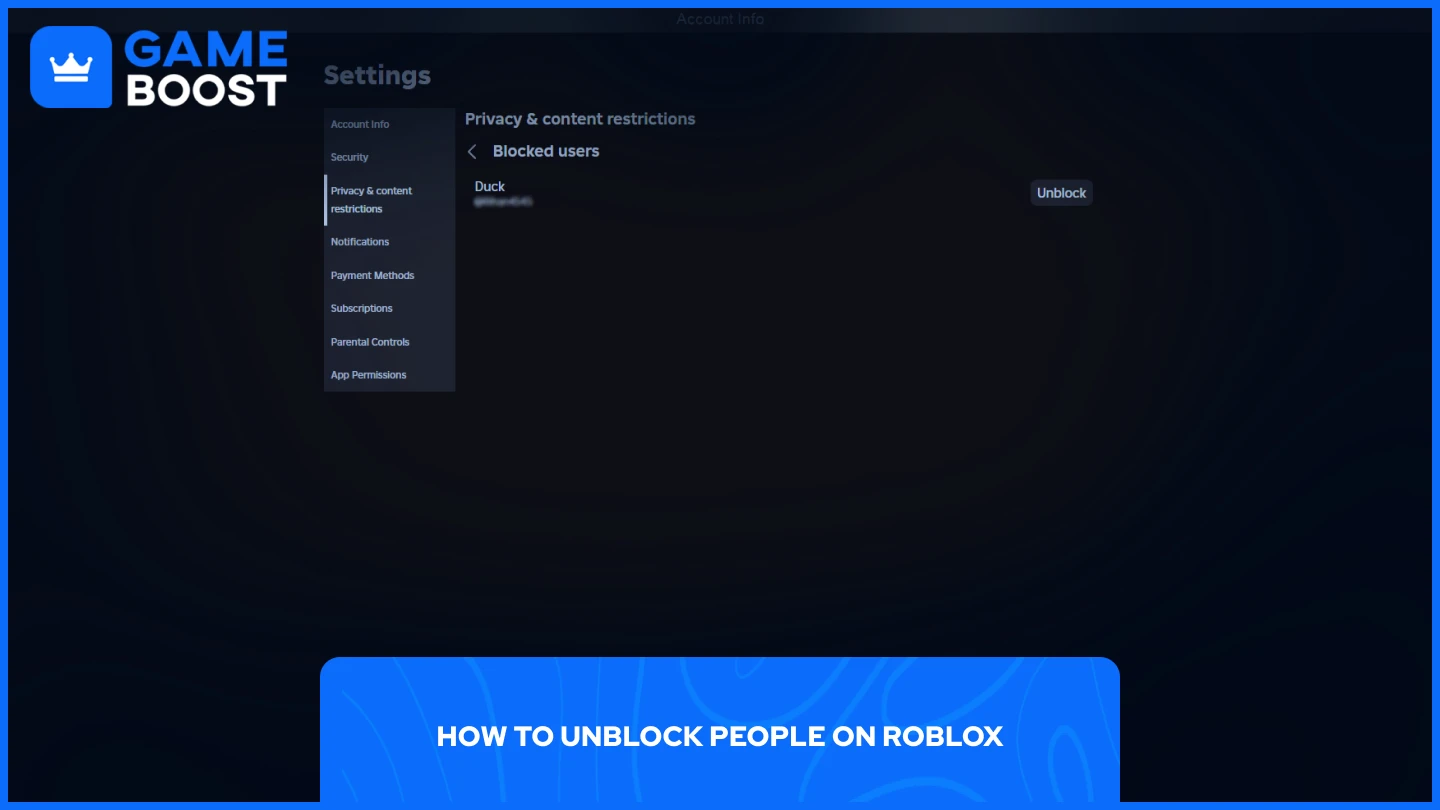
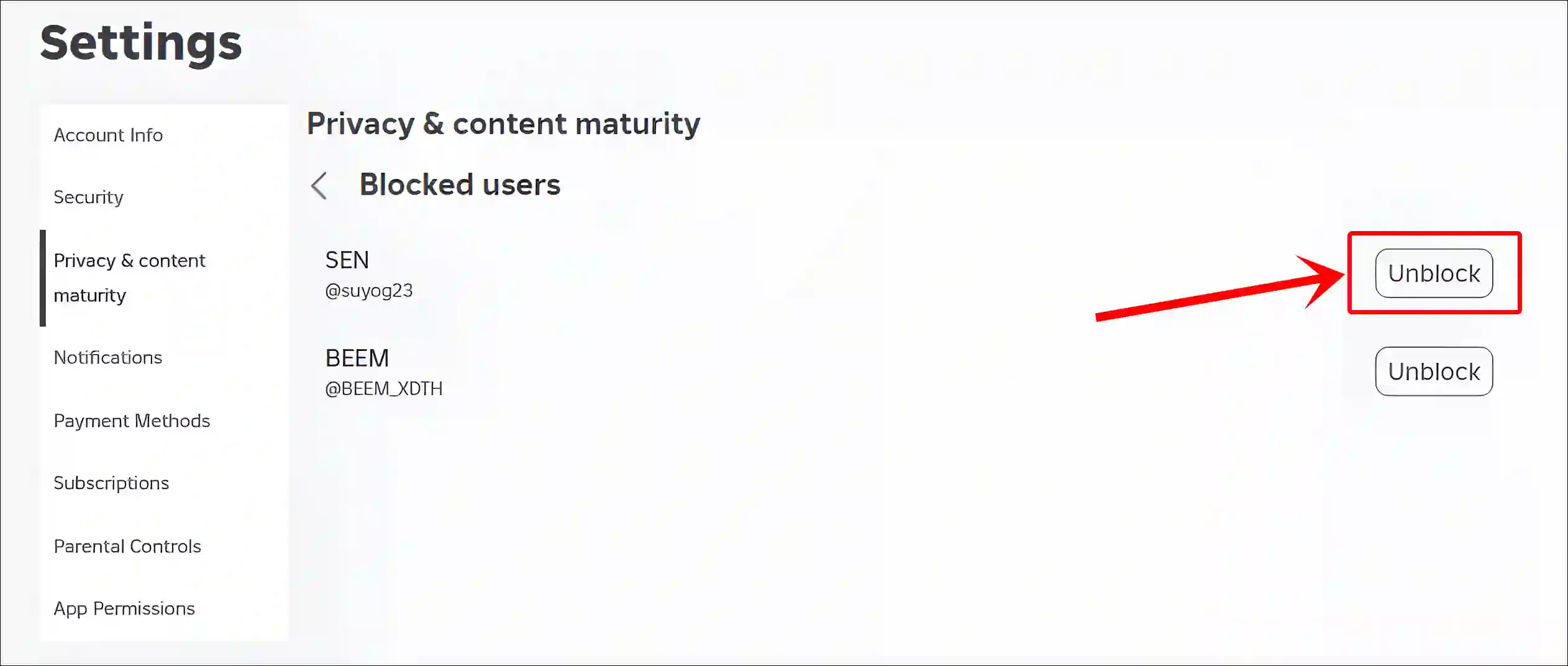
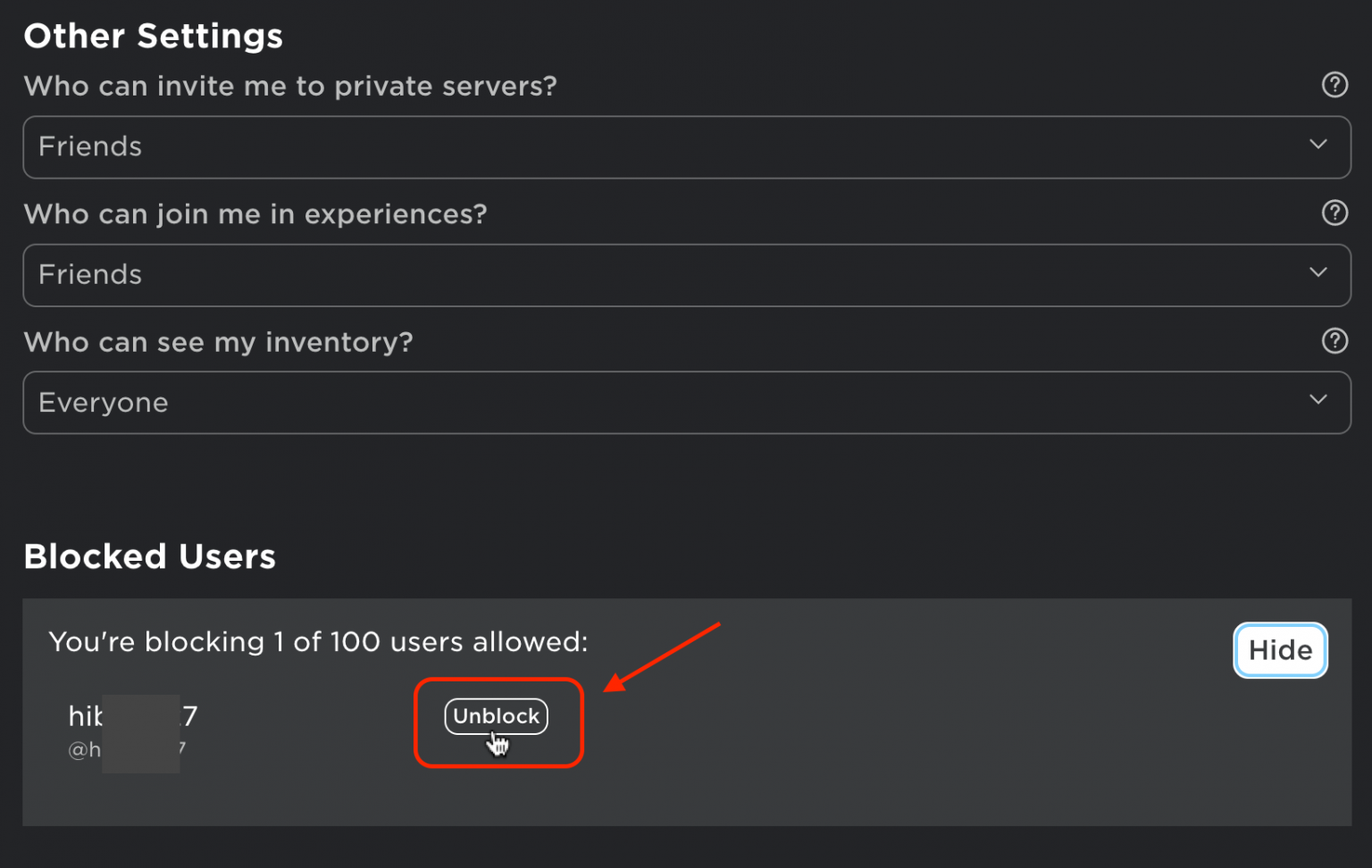
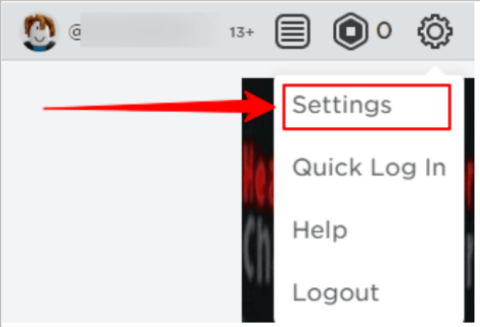
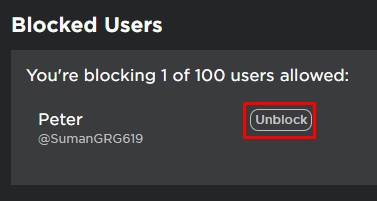
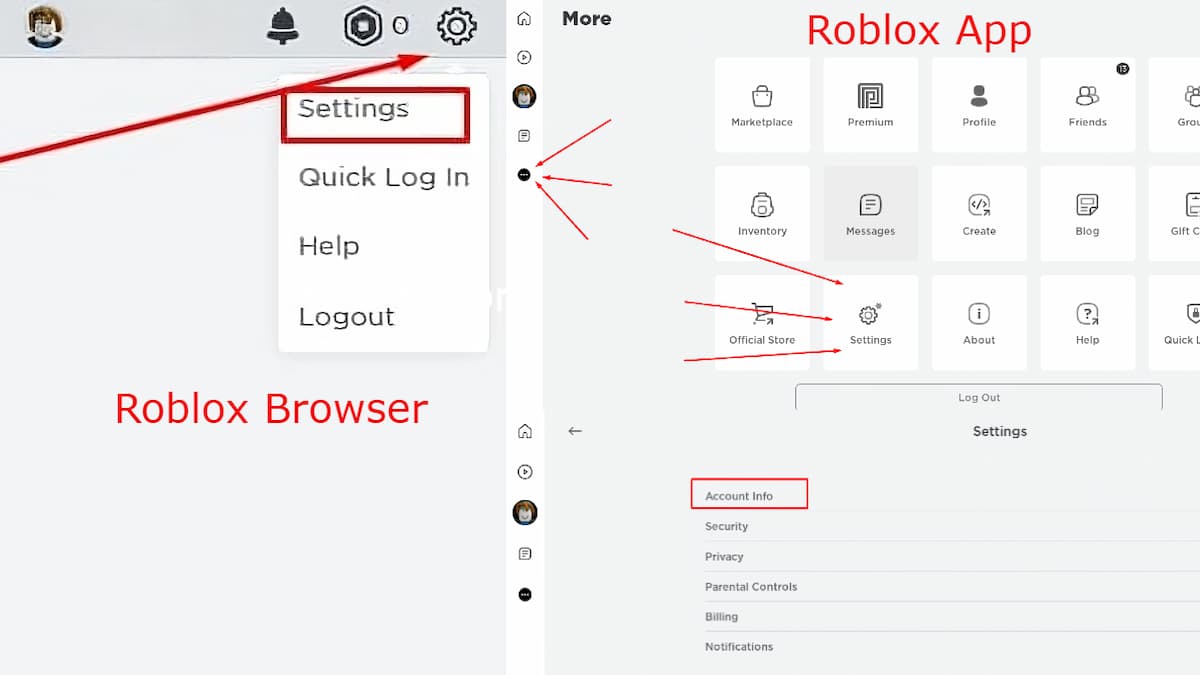
Unblocking a friend on Roblox from your PC or Mac is straightforward and involves navigating through your account settings on the official Roblox website. First, log into your Roblox account via your web browser. Next, locate the gear icon (Settings) in the upper-right corner of the page and click on it, then select "Settings." From the left-hand menu, choose the "Privacy" tab. Scroll down to the "Blocked Users" section where you'll see a list of all players you've blocked. Find the friend's username and click the "Unblock" button next to their name. Confirm your action if prompted, and they will be instantly removed from your blocked list, allowing you to reconnect.
What's the Process to Unblock Someone on the Roblox Mobile App?
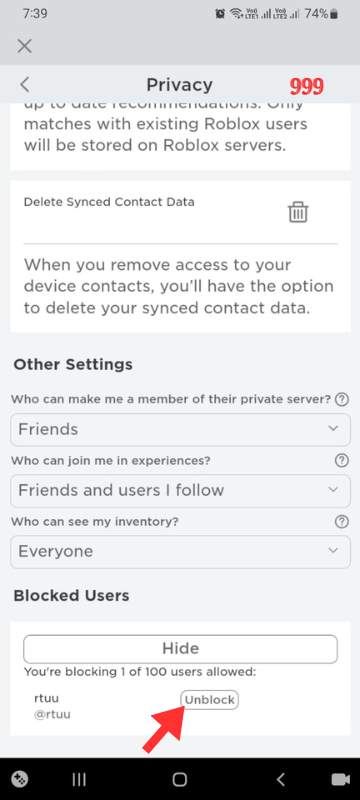
Unblocking a player using the Roblox mobile app on your iOS or Android device is just as simple. Begin by opening the Roblox app and logging into your account. Tap the three dots icon (More) in the bottom-right corner of the screen to access the main menu. From there, scroll down and tap "Settings," then select "Privacy." Within the "Privacy" section, locate and tap on "Blocked Users." You'll see a list of all the players you've blocked. Find the username of the person you wish to unblock and tap the "Unblock" button next to it. Confirm the action when prompted, and the player will be unblocked.
Can I Unblock a User on Roblox if They Are No Longer My Friend?
Yes, you can absolutely unblock a user even if they are not currently on your friend list. The blocking feature on Roblox operates independently of your friend status. When you block someone, they are added to your "Blocked Users" list, regardless of whether they were a friend or not. The unblocking process remains the same: navigate to your "Privacy" settings, find the "Blocked Users" list, and click "Unblock" next to their name. After unblocking, you can then send them a new friend request if you wish to re-establish your friendship.
Why Isn't Someone Appearing on My Blocked Users List?
If you're trying to unblock someone but can't find them on your "Blocked Users" list, there are a few possibilities. First, double-check that you are logged into the correct Roblox account; it's common for players, especially those with multiple accounts, to get them mixed up. Second, ensure you actually blocked them and didn't just unfriend them. Unfriending someone does not add them to your blocked list. Finally, consider if Roblox itself might have banned or removed the user; if so, they wouldn't appear on your personal blocked list as it's a platform-level action.
What Happens After I Successfully Unblock a Player on Roblox?
Once you successfully unblock a player on Roblox, several interactions become possible again. The unblocked player will regain the ability to send you messages, join games you are playing (depending on your privacy settings for specific games), and send you a friend request. It's important to remember that unblocking does not automatically restore your previous friend status; you will both need to send and accept new friend requests to become friends again. Any chat history from before the block will not be automatically recovered, only new communications will be visible.
Are There Any Privacy Settings I Should Adjust After Unblocking Someone?
After unblocking a player, it's a good idea to review your overall privacy settings to ensure they align with your current preferences. Head back to your "Privacy" tab in Settings. You can adjust who can message you, who can send you friend requests, and who can join your private servers. For instance, if you only want friends to message you, you can set "Who can message me?" to "Friends." This gives you fine-grained control over your social interactions, allowing you to gradually re-engage or maintain boundaries as needed.
Does Unblocking Someone Affect My Other Friends or Game Experiences?
Unblocking a specific player on Roblox primarily affects your interactions with only that individual. It does not directly impact your relationships with other friends or your general game experiences. Your existing friends remain friends, and your general privacy settings (e.g., who can join your games, who can see your inventory) remain as you've set them, unless you specifically go in and change them. The purpose of unblocking is to lift the restrictions solely between you and the previously blocked user, allowing for a renewed potential for direct communication and shared gameplay.
In the vibrant, ever-evolving universe of Roblox, connecting with friends and fellow gamers is truly at the heart of the experience. For many US gamers, particularly those balancing demanding lives with professional and family commitments, Roblox isn't just another game platform; it's a social hub, a creative outlet, and a crucial space for relaxation, fun, and even skill-building. Imagine winding down after a long day at work by collaborating with friends on an intricate build or exploring a new adventure game – these are the moments that truly matter. Recent US gaming statistics underscore this, with approximately 87% of adult gamers regularly engaging in online play, often dedicating 10 or more hours a week to their passion. Social gaming trends continue to accelerate this month, especially with mobile gaming dominating the landscape, making seamless interaction across all devices an absolute must for an uninterrupted good time.
But let's be honest, we've all been there: a quick misunderstanding in chat, an accidental tap on a mobile screen, or perhaps a temporary need for personal space leads to the unintended consequence of blocking someone. Then, just as quickly, that pang of regret sets in, or you realize you need to reconnect with that player for a shared project or just to hang out. The immediate question that bubbles to the surface is, "How do you unblock someone on Roblox?" It can be incredibly frustrating to navigate through layers of menus, especially when your precious gaming time is limited, or you simply want to get back to the action with your pals. Many adult gamers, with an average age around 36, value efficiency and clear, practical solutions above all else. They want to spend their hard-earned leisure hours actually gaming and socializing, not wrestling with confusing platform settings.
This comprehensive guide is your trusted, no-nonsense resource, meticulously designed to cut through any confusion and provide you with crystal-clear, step-by-step instructions on exactly how do you unblock someone on Roblox. We'll ensure your social gaming experience remains smooth, enjoyable, and uninterrupted. Whether you're on a powerful PC, a convenient mobile device, or even an Xbox console, we'll cover every angle, helping you restore those vital connections quickly and easily. Our goal is to empower you to regain control over your social circle on Roblox, so you can focus on building worlds, making memories, and truly enjoying your valuable game time.
How Do You Unblock Someone on Roblox from Your PC or Mac?
Unblocking a player on Roblox from your computer is a straightforward process, designed to get you back to social gaming quickly. For many gamers who utilize their PC for the optimal Roblox experience, navigating the web interface is key. Remember, keeping your in-game social connections active helps with collaborative play and skill-building, which are valued by US gamers balancing life and leisure.
Log In to Your Roblox Account: Open your preferred web browser and go to the official Roblox website (www.roblox.com). Log in with your username and password.
Access Your Settings: Once logged in, look for the gear icon in the upper right corner of the page. Click on it to open the dropdown menu, then select "Settings."
Navigate to Privacy: On the left-hand side of the Settings page, you'll see several tabs. Click on the "Privacy" tab. This section is where you control who can interact with you on Roblox, a crucial aspect for any gamer concerned with a balanced online experience.
Find Your Blocked Users: Scroll down to the "Blocked Users" section. Here, you will see a list of all the players you have previously blocked. It's a handy feature for quick management, reflecting Roblox's focus on user control over their social environment.
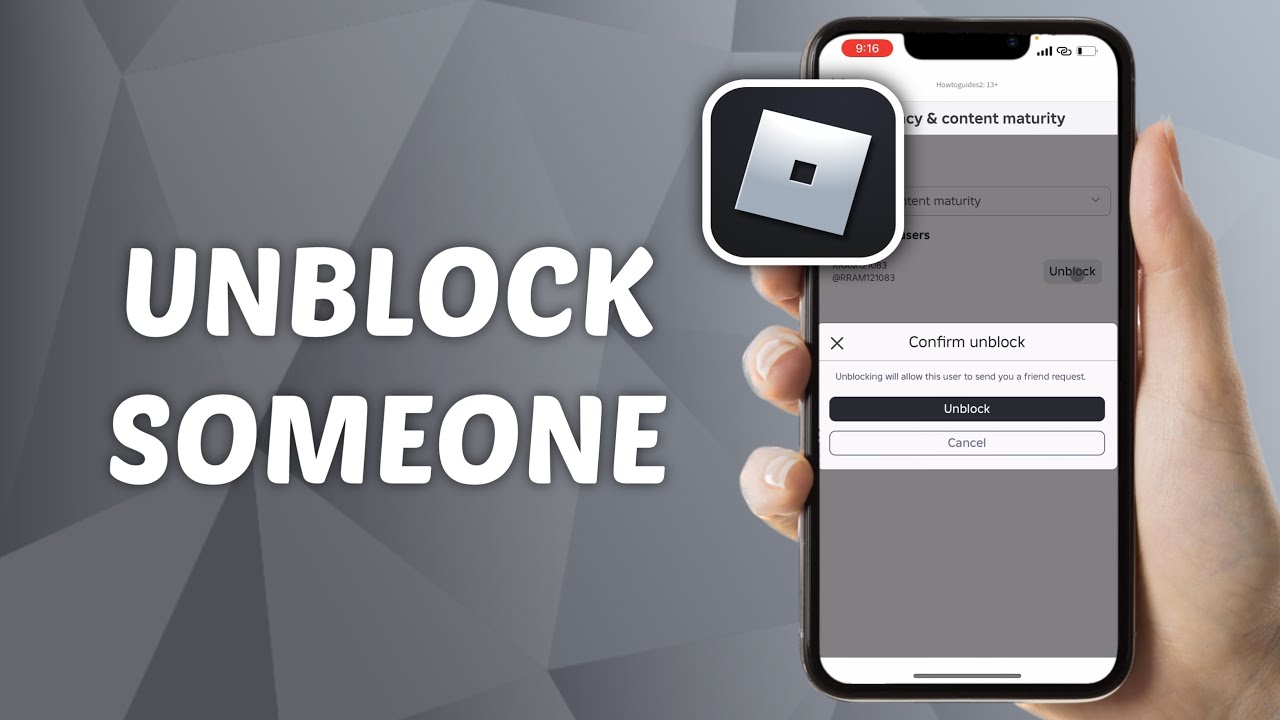
Unblock the Player: Locate the username of the person you wish to unblock. Next to their name, there will be an "Unblock" button. Click this button. A confirmation message might appear; confirm your decision. The player will instantly be removed from your blocked list.
After these steps, the player will be able to send you friend requests, messages, and join games with you again. This quick resolution means less downtime and more fun, which is exactly what busy adult gamers appreciate.
What Are the Steps to Unblock a Player on Roblox Mobile?
Given that mobile gaming dominates the US market, with many gamers frequently using their smartphones for Roblox on the go, knowing how to unblock someone on Roblox directly from your mobile device is essential. This ensures that whether you're on a quick break at work or relaxing on the couch, you can manage your social connections effortlessly.
Open the Roblox App: Launch the Roblox application on your iOS or Android device.
Log In: If you're not already logged in, enter your username and password.
Access the Menu: Tap the three dots icon (More) located in the bottom-right corner of the screen.
Go to Settings: From the menu that appears, scroll down and tap "Settings."
Select Privacy: Within the Settings menu, tap on "Privacy." Just like on PC, this is your hub for managing who interacts with your account.
Locate Blocked Users: Scroll down to find the "Blocked Users" section. Here, you'll see a list of all players you've blocked.
Unblock the User: Find the name of the player you want to unblock and tap the "Unblock" button next to their username. Confirm if prompted. The player will then be moved off your blocked list.
These mobile-friendly steps ensure that even when you're away from your desktop, you have full control over your social circle on Roblox, a vital feature for the on-the-go gamer.
Can You Unblock Someone on Roblox Using a Console (Xbox, PlayStation)?
While Roblox is primarily known for its PC and mobile presence, it's also available on consoles like Xbox. For gamers who prefer the console experience, managing your social settings, including how to unblock someone on Roblox, is just as important. Balancing console gaming with life often means quick actions are valued.
On Xbox, the process to unblock a Roblox player is slightly different as it often integrates with the console's native friend and privacy settings, though Roblox itself manages the in-game block list directly.
Launch Roblox on Xbox: Start the Roblox application on your Xbox console.
Access Roblox Settings: Navigate within the Roblox app to its settings or privacy options. This might be found through your avatar icon or a dedicated settings menu within the game interface.
Look for Blocked Users: Search for a section related to "Blocked Users," "Privacy," or "Friends" management within the Roblox application itself. The Xbox version of Roblox has its own in-app settings for blocked users.
Select and Unblock: Find the player's Gamertag or Roblox username on your blocked list and select the option to unblock them. Confirmation may be required.
Currently, Roblox is not natively available on PlayStation consoles, so this specific unblocking method would not apply there. However, if Roblox expands its console presence, the in-app management of blocked users is likely to follow a similar pattern, putting control directly into the hands of the player for a seamless experience across platforms.
Why Would I Need to Unblock Someone on Roblox?
There are many legitimate reasons why a gamer might need to know how to unblock someone on Roblox. Sometimes, a block is a temporary measure, and circumstances change. For many adult gamers, social interaction within games is a crucial part of unwinding and connecting, so maintaining those relationships is key.
Misunderstanding Resolved: You might have had a minor disagreement or misunderstanding with a friend that has since been resolved. Unblocking them allows you to reconnect and put the issue behind you, returning to cooperative play.
Accidental Block: In the heat of the moment or due to a misclick, you might have accidentally blocked someone you didn't intend to. This is more common than you'd think, especially on mobile devices where quick taps are frequent.
Reconnecting with Old Friends: Sometimes you block someone years ago and now wish to reconnect. As players grow and gaming communities evolve, rekindling old friendships is a natural part of the social gaming landscape.
New Game Opportunities: A friend might have joined a new game that you're interested in, but your block prevents them from inviting you or interacting. Unblocking opens up new collaborative gaming experiences.
Moderation Needs: In some cases, players might be blocked temporarily for community management reasons, and then unblocked once the situation is resolved or they've demonstrated improved behavior. This is often more relevant for content creators or community leaders.
Ultimately, the ability to unblock someone on Roblox gives you control over your social gaming environment, allowing for flexibility and ensuring that your game time remains positive and connected.
How Do I Find My Blocked Users List on Roblox?
Finding your blocked users list on Roblox is crucial for managing your social connections and determining how do you unblock someone on Roblox. It’s a dedicated space where Roblox consolidates all the players you’ve decided to block, making it easy to review and modify your choices. This feature is consistent across PC and mobile platforms, providing a unified experience for gamers.
On PC/Mac:
Log in to roblox.com.
Click the gear icon (Settings) in the top-right corner.
Select "Settings" from the dropdown.
Click on the "Privacy" tab on the left-hand menu.
Scroll down to the "Blocked Users" section.
On Mobile (iOS/Android App):
Open the Roblox app.
Tap the three dots icon (More) in the bottom-right corner.
Tap "Settings."
Tap "Privacy."
Scroll down to the "Blocked Users" section.
This centralized list ensures that you don't have to hunt around to manage who can interact with you, a practical design choice for busy gamers who appreciate straightforward functionality.
What Happens When You Unblock Someone on Roblox?
Understanding the implications of unblocking someone on Roblox helps clarify what to expect after performing the action. When you unblock a player, you're essentially removing all the restrictions that were previously in place, restoring the potential for interaction. This restoration of social channels aligns with the trend of social gaming, where seamless communication is often desired.
Communication Restored: The unblocked player can now send you messages again, if your privacy settings permit. All previous chat history, however, is not automatically restored; only new messages will appear.
Friend Requests Possible: They can send you friend requests, and you can send them one. If you were previously friends before the block, you will need to re-add each other as friends to fully restore that connection.
Joining Games: The unblocked player can join games you are playing, assuming the game's privacy settings and your personal privacy settings allow it. This is crucial for collaborative and social gameplay, a major draw for many Roblox users.
Seeing Their Content: You will be able to see their creations, comments, and other public content on Roblox again, and they will be able to see yours.
No Automatic Friend Status: It's important to note that unblocking someone does NOT automatically make you friends again. You both need to send and accept new friend requests to re-establish your friend status.
Unblocking is about re-enabling the option for interaction, putting the power back in your hands to decide the next steps in your social gaming journey.
Are There Any Limitations to Unblocking Someone on Roblox?
While the process of how do you unblock someone on Roblox is generally straightforward, there are a few considerations and potential limitations to be aware of. These aren't roadblocks but rather points to keep in mind as you manage your social interactions.
Privacy Settings of Others: Even if you unblock someone, their own privacy settings might still prevent them from interacting with you if they have chosen to restrict interactions from non-friends or specific users. You only control your side of the connection.
Server Latency: In rare cases, there might be a slight delay (a few minutes) for the unblock to fully register across all Roblox servers, especially if you immediately try to send a friend request or message. A quick refresh or relog usually resolves this.
Roblox Moderation: If a player was blocked by Roblox itself due to terms of service violations, you cannot "unblock" them through your personal settings. That's a platform-level restriction. This is separate from your personal blocked list.
Not a Universal Unblock: Unblocking on Roblox only affects your interactions within the Roblox platform. It does not affect any blocks you might have in place on other social platforms like Discord or other games.
Lost Chat History: As mentioned, unblocking does not restore past private chat history. Any messages exchanged before the block (and during it) remain inaccessible if they were purged or are not stored on your device.
These are minor points, but understanding them ensures a smoother experience when trying to reconnect with other players on Roblox.
Tips for Managing Your Roblox Friend List and Privacy Settings.
For the busy US gamer, effectively managing your Roblox friend list and privacy settings is key to a stress-free and enjoyable experience. Given that social play and personal space are equally valued, proactive management of these features helps balance your gaming life. Here are some pro tips:
Regularly Review Your Blocked List: Periodically check your "Blocked Users" list, perhaps once a month, to see if there's anyone you now wish to reconnect with or if there are old entries you no longer recognize. This keeps your social circle current.
Utilize Privacy Controls: Explore the full range of privacy settings under the "Privacy" tab. You can control who can message you, who can send you friend requests, who can join your private servers, and who can see your inventory. Tailoring these settings provides a personalized gaming environment.
Friend Only Game Access: For a more controlled social experience, set your game access to "Friends Only" when creating or joining private servers. This ensures that only trusted individuals can join you, fostering a more relaxed atmosphere, which is important for gamers unwinding after a long day.
Educate Younger Players: If you have family members who also play Roblox, especially younger ones, teach them about managing their friends list and privacy settings. Empowering them with these tools promotes safer online interactions.
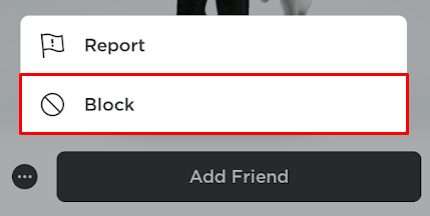
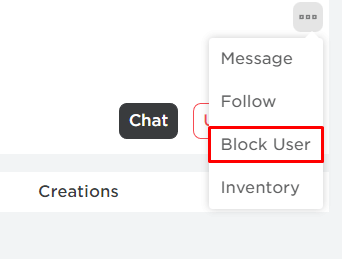
Report and Block When Necessary: Don't hesitate to use the "Report" and "Block" features if you encounter genuinely disruptive or inappropriate behavior. Roblox has systems in place to address these issues, contributing to a healthier gaming community overall.
By taking a few minutes to manage these settings, you ensure that your Roblox experience remains positive, private, and perfectly tailored to your preferences, allowing you to maximize your enjoyment without unnecessary interruptions.
Common Issues When Trying to Unblock Someone on Roblox and Their Solutions.
Even with clear instructions, gamers might occasionally run into minor snags when trying to unblock someone on Roblox. For the practical-minded adult gamer, quick solutions are always welcome. Here are some common issues and how to troubleshoot them:
Player Not Appearing on Blocked List:
Issue: You're sure you blocked someone, but they aren't showing up in your "Blocked Users" list.
Solution: Double-check that you're logged into the correct Roblox account. If you manage multiple accounts (perhaps for different personas or testing), you might be looking at the wrong list. Also, ensure you haven't simply unfriended them instead of blocking them.
Unblock Button Grayed Out or Unresponsive:
Issue: You click "Unblock," but nothing happens, or the button isn't clickable.
Solution: Try refreshing the page or restarting the Roblox app. Sometimes, a temporary glitch or internet connectivity issue can prevent actions from registering. Clearing your browser cache or reinstalling the mobile app (if persistent) can also help.
Still Can't Interact After Unblocking:
Issue: You've successfully unblocked them, but you still can't send messages or friend requests.
Solution: The unblocked player's own privacy settings might be restricting interactions. They might have their settings configured to only accept messages or friend requests from "Friends Only." You'll need to communicate with them outside Roblox (if possible) to have them adjust their settings or send you a request.
Seeing a Player You've Blocked in a Game:
Issue: You unblocked someone, but then you see them in a game you're playing, and you don't want to interact just yet.
Solution: Unblocking allows them to potentially join games you are in. If you want to avoid them temporarily, you might need to leave that specific server or adjust your game settings to "Friends Only" if applicable for private servers. Remember, unblocking doesn't guarantee you won't encounter them.
These simple troubleshooting steps usually resolve most unblocking issues, letting you get back to your gaming with minimal fuss.
How Does Unblocking Affect My In-Game Social Interactions?
Unblocking a player on Roblox fundamentally alters your potential for in-game social interactions with that specific individual. For US gamers who often prioritize social connections and cooperative play, understanding these changes is important for a smooth experience. It’s about restoring options, not forcing interactions.
Re-Enabling Communication: The most significant change is that direct communication is re-enabled. If your privacy settings and theirs allow it, you can once again send private messages, chat in games, and see their in-game chat. This is crucial for coordination in team-based games or simply for friendly banter.
Friend Request Capability: Unblocking allows either party to send a friend request. If you were previously friends, you’ll need to re-establish that friendship. Being friends opens up more direct social features, like easily seeing when they are online and joining their game sessions directly.
Visibility in Games and Experiences: The unblocked player can now appear in the same game servers as you, assuming there's an open slot and no other privacy settings prevent it. This increases the likelihood of shared gaming experiences, whether cooperative or competitive.
Profile and Content Visibility: You will be able to view their Roblox profile, creations, and any public content they share. Similarly, they will regain the ability to view your public profile and content. This restores the full scope of social engagement on the platform.
Impact on Shared Experiences: For gamers who thrive on social play and collaboration, unblocking someone means re-opening avenues for playing together, sharing creations, and participating in group activities. It directly impacts your ability to form teams, explore worlds, or simply hang out in the expansive Roblox metaverse.
In essence, unblocking someone on Roblox re-establishes the pathways for social engagement, allowing you to rebuild or continue your in-game relationships as you see fit.
Navigating the social dynamics of online gaming, especially on platforms as vast as Roblox, is a skill in itself. We understand that for adult gamers balancing life, work, and play, simplicity and direct solutions are paramount. Knowing how to unblock someone on Roblox is more than just a technical step; it's about maintaining those vital social connections that enrich your gaming experience, enabling collaboration, fun, and stress relief. With 60% of US gamers regularly engaging in social play, the ability to manage your interactions fluidly is invaluable.
This guide has walked you through the clear, actionable steps to unblock players across PC, mobile, and even console, demystifying the process and addressing common concerns. From understanding the privacy settings to troubleshooting minor issues, you now have the knowledge to confidently manage your Roblox social circle. Remember, the Roblox metaverse is designed for connection, and having control over who you interact with ensures it remains a positive and engaging space for you.
What's your biggest social gaming challenge on Roblox? Comment below and share your tips for managing friends and privacy!
FAQ: Frequently Asked Questions About Unblocking on Roblox
Can I unblock someone if I don't remember their username?
Yes, if they are still on your blocked list, you can find their username there. The "Blocked Users" section displays all the names you've blocked, so you don't need to recall them directly.
Does unblocking someone automatically make us friends again?
No, unblocking someone on Roblox does not automatically restore your friend status. You or the other player will need to send a new friend request, and it must be accepted by both parties.
What if I can't find the Privacy settings on mobile?
Ensure you are fully logged into the Roblox app. The Privacy settings are typically found by tapping the three dots icon (More) in the bottom-right, then selecting "Settings," and finally "Privacy." If it's still missing, try updating the app or reinstalling it.
Will unblocking them allow them to see my private servers?
Unblocking makes it possible for them to see your public activity. Whether they can join your private servers depends on your server's specific settings. If your private server is set to "Friends Only," they would need to be re-friended first to join.
Is there a limit to how many people I can block or unblock?
Roblox does not publicly state a hard limit on the number of players you can block or unblock. You can manage your list as needed to maintain your preferred social environment.
If I re-block someone, will they know?
Roblox does not send notifications to players when they are blocked or unblocked. They might infer it if they suddenly can't message you or find your profile, but they won't receive a direct alert.
Quick guide to unblocking players on Roblox Learn steps for PC mobile and console Understand Roblox privacy settings and friend management Restore social connections easily Get back to gaming with friends without hassle Troubleshoot common unblocking issues
34


How To Unblock Someone On Roblox Unblock People On Roblox YouTube . Minecraft Vs Roblox Which Is Better How To Unblock Someone On. How To Unblock Someone On Roblox TechStory Screenshot 2024 08 25 183858 . How To Unblock Friends On Roblox YouTube . How To Unblock Someone On Roblox YouTube


How To Block And Unblock Users On Roblox Step By Step 3e91016c C3ab 4a3b 8479. How To Unblock Someone On Roblox L Easy Tutorial 2022 YouTube . How To Block Unblock Someone On Roblox Full Guide YouTube . How To Unblock People On Roblox All Platforms Roblox Desk How To Unblock People On Roblox.webp. How To Unblock A Roblox User On Mobile 2023 Unblock Someone On Roblox




Roblox How To Unblock Someone Easily . How To Unblock A User On Roblox Mobile Console Computer V4 460px Unblock Someone On Roblox Step 4 . How To Check Unblock The Blocked People On Roblox Mobile And PC Unblock Someone On Roblox Pc.webp. Roblox Unblock Someone On Roblox Step 12 . How To Unblock Someone On Roblox TechStory 10


How To Tell If Someone Blocked You On Roblox Roblox How To Block Someone 005 1536x972 . How To Block And Unblock Users On Roblox Step By Step 95261d0f C614 4c5f B659 Webp.webp. How To Unblock Someone On Roblox How To Unblock Someone On Roblox. Roblox 2025 How To Unblock Someone On Roblox A Step By Step Guide.webp. ROBLOX How To Block Or Unblock Another Player Roblox Den Image D0dbcf0221


How To Unblock Someone On Roblox 2022 Blog How To Unblock Someone On Roblox 1 480x327 . How To Unblock Someone On Roblox Mobile YouTube . How To Unblock Someone On Roblox Unblock . How To Know If Someone Blocked You On Roblox YouTube . Roblox How To Unblock Someone Easily


How To Unblock A User On Roblox Mobile Console Computer V4 459px Unblock Someone On Roblox Step 1 . How To Unblock Roblox On A School Computer How To Unblock Roblox On A School Computer . How To Unblock Someone On Roblox TechStory 6c0f1 1920 . How To Message On Roblox 2026 A Quick Guide . You Can T Friend This Roblox Player Gi I Ph P V C Ch Kh C Ph C L I

How Do I Find Someone On Roblox In 2026 A Quick Guide Roblox How To Get To Settings . How To Unblock People On Roblox Step By Step YouTube . How To Unblock Someone On Roblox A Step By Step Guide Unblocked Screenshot Showing Unblocking User . ROBLOX How To Block Or Unblock Another Player Roblox Den Image 1d54938dff