Unlocking the full social potential of Roblox involves mastering emotes, those fun in-game animations that let you express yourself without typing. This guide dives deep into how to roblox emote on any device, from PC to mobile and console, ensuring you can join in the fun, greet friends, or celebrate victories effortlessly. Discover where to find free and premium emotes, how to equip them to your avatar, and practical steps for using them in any Roblox experience. Learn how to troubleshoot common issues and stay updated on the latest trending emotes this month. For busy gamers balancing life and play, these quick tips will enhance your relaxation and connection, making your limited gaming time more enjoyable and expressive. Get ready to transform your Roblox interactions and stand out in the crowd. This navigational resource will equip you with all the knowledge needed to emote like a pro, improving your overall Roblox engagement and social standing.
How do I perform an emote in Roblox on my PC?
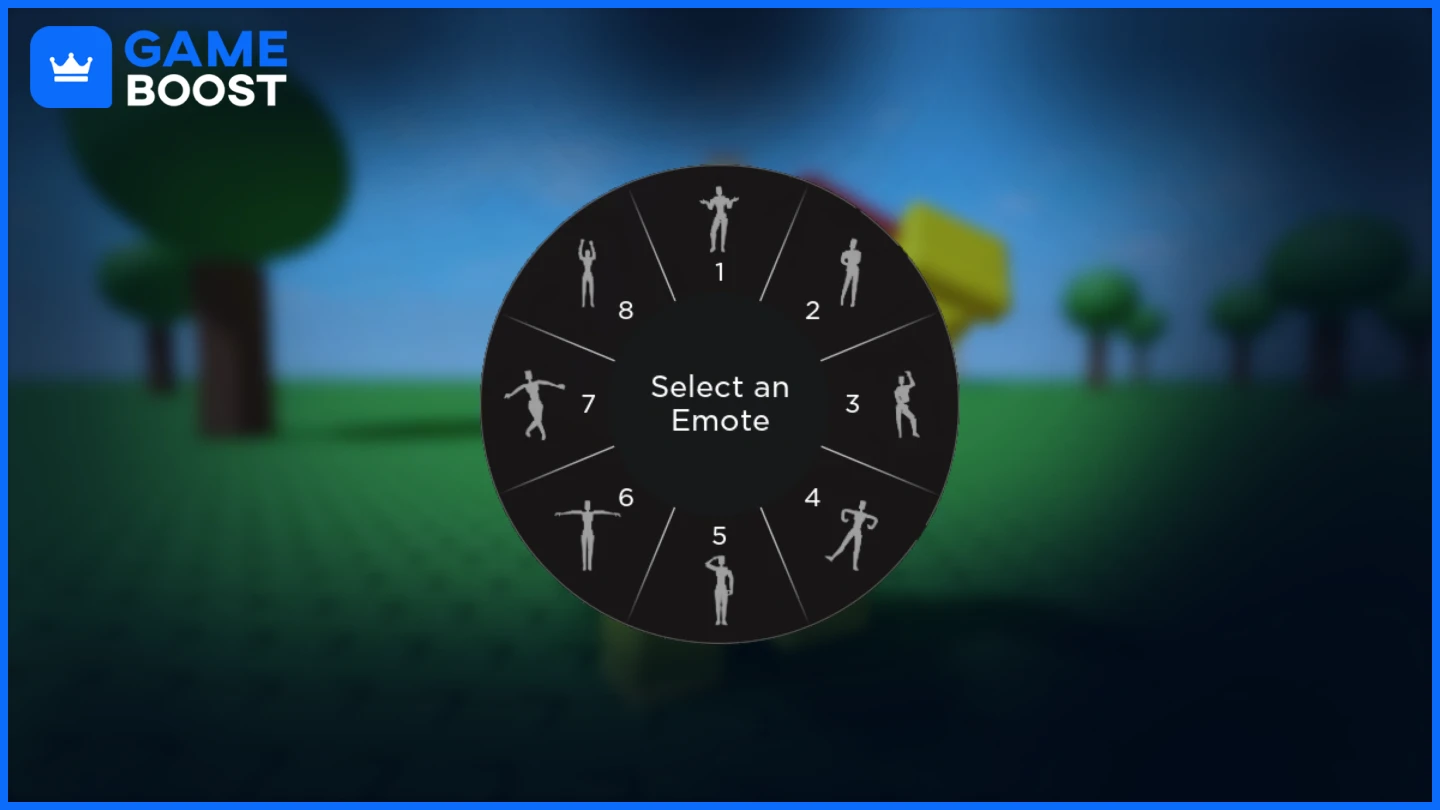
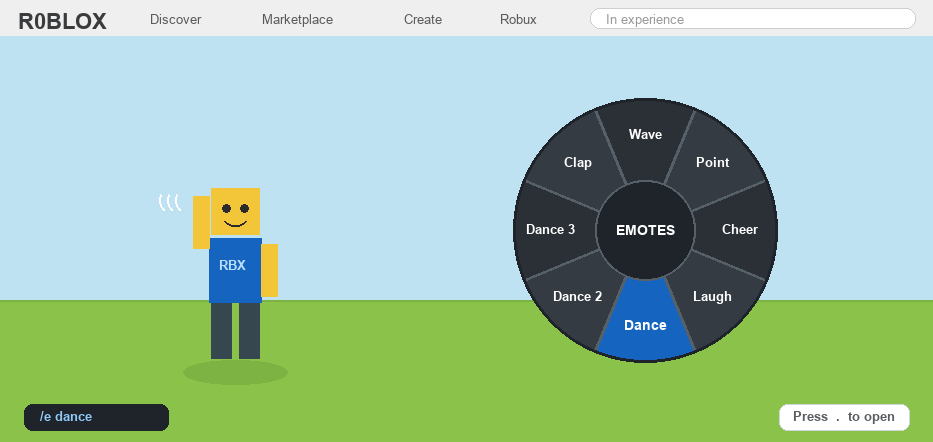
To perform an emote on your PC, open the chat window by pressing "/" and then type "/e" followed by the emote's name (e.g., "/e wave"). Alternatively, click the emote icon on your screen to bring up a visual selection wheel or list, making it easy to choose your desired action. This allows for quick expression without pausing your gameplay.
Can I use Roblox emotes on my mobile phone or tablet?
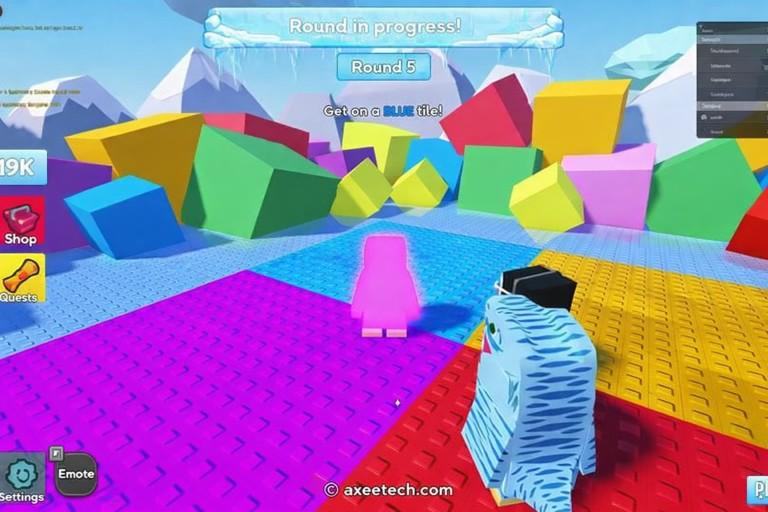
Yes, absolutely! Roblox emotes are fully supported on mobile and tablet devices. Simply tap the emote icon, often located near the chat bubble on your screen. This will open your equipped emotes, allowing you to select and perform any animation with a simple tap, perfect for on-the-go gaming.
Where can I find new emotes to add to my Roblox collection?
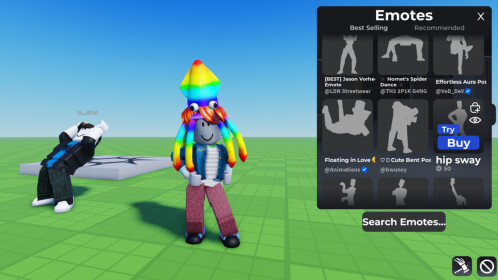
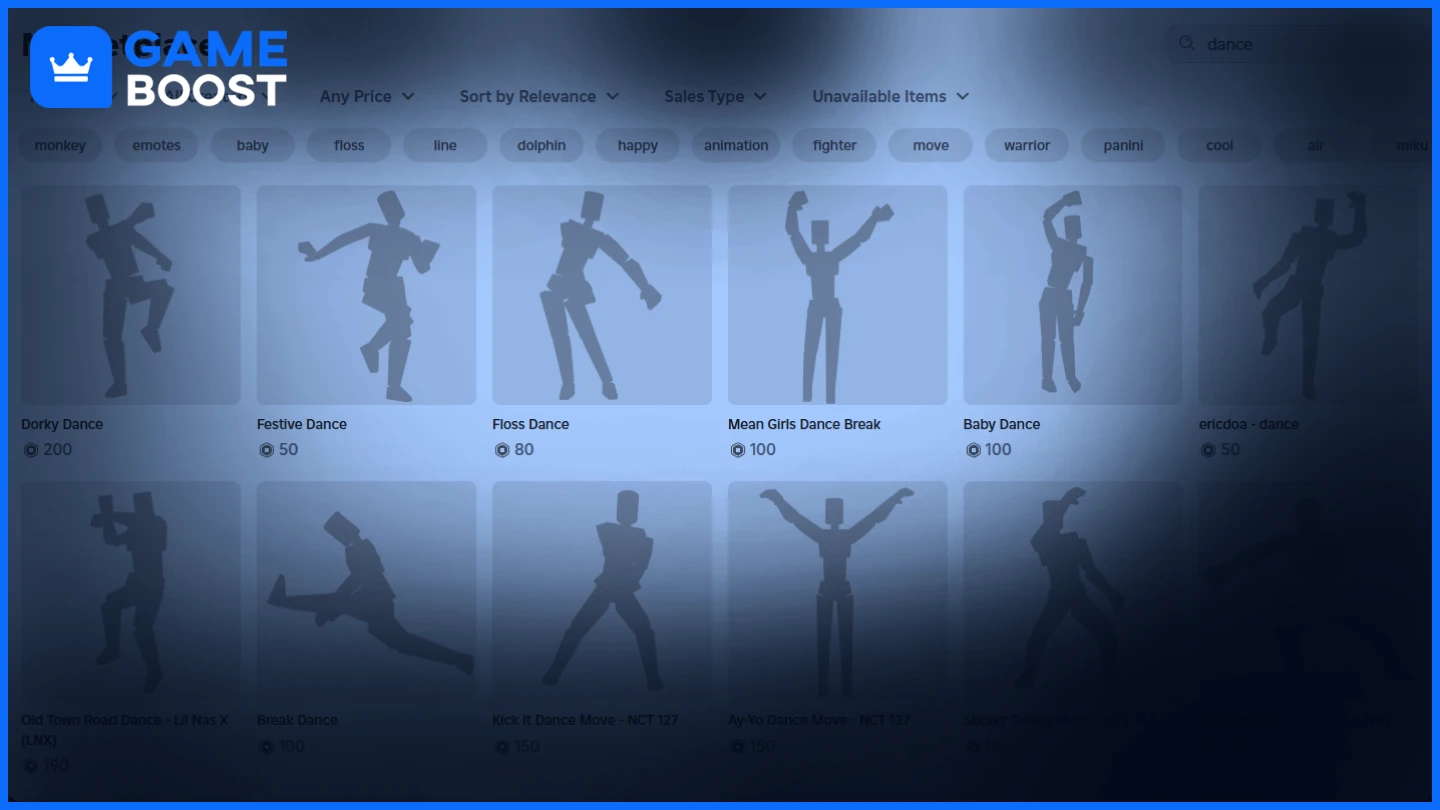
You can find new emotes in the Roblox Avatar Shop. Navigate to the "Animations" or "Emotes" section where you can browse and purchase a wide variety of animations using Robux. Keep an eye out for free emotes during special Roblox events or promotions, which are often announced on official channels.
How do I equip my favorite emotes to my avatar in Roblox?
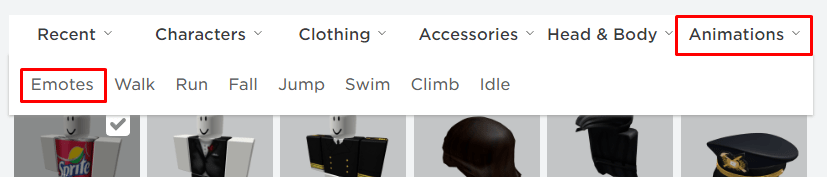
To equip emotes, go to the "Avatar" section from the Roblox home page. Select "Animations," then "Emotes." You'll see several empty slots where you can drag and drop your owned emotes. Equipping them makes them readily accessible in-game for quick use and personalization.
Are there any free emotes available in Roblox, and how do I get them?
Yes, Roblox provides a few basic emotes for free to all players. Additionally, you can often earn free, exclusive emotes by participating in official Roblox events, completing specific in-game challenges, or redeeming occasional promotional codes. Always check official Roblox news for upcoming freebie opportunities.
Why are my Roblox emotes not showing up or working in a game?
If your emotes aren't working, first ensure they are properly equipped in your Avatar Editor. Then, check if you're using the correct command or button for your device. Some specific games might temporarily restrict emotes, or a simple restart of the Roblox app or experience can often resolve minor glitches and connectivity issues.
What is the best way to discover trending Roblox emotes this month?
The best way to discover trending Roblox emotes is to regularly check the "Top Selling" or "Trending" sections within the Avatar Shop. You can also follow popular Roblox content creators on platforms like YouTube, as they often showcase and review the latest and most popular emotes that are currently gaining traction in the community.
Life as a busy adult gamer, juggling work, family, and personal life, often means gaming is a cherished escape. It's where we unwind, connect with friends, and build skills without the daily grind's pressure. Roblox, with its vast universe of user-generated content, has become a go-to for many US gamers seeking both relaxation and rich social interaction. In fact, recent data shows about 87% of US gamers play regularly, often dedicating 10+ hours a week, and social features are increasingly vital to that experience. But how often do you see other players pulling off hilarious dances or cool greetings, and wonder, "how to roblox emote like that?"
You're not alone. Many adult gamers, while loving the immersive worlds, find the nitty-gritty of in-game controls and social expressions a bit tricky to navigate. We don't have hours to scour forums; we need quick, actionable solutions. Mastering emotes in Roblox isn't just about looking cool; it's about seamlessly expressing yourself, enhancing social connections, and fully immersing in the game world, whether you're on a quick mobile session or a relaxed PC evening. This comprehensive guide is designed for you. We’ll cut through the confusion and show you exactly how to roblox emote, from finding and equipping them to using them effortlessly across all your devices. Get ready to elevate your Roblox experience and make every interaction more engaging and fun.
What exactly are Roblox emotes and why are they important for adult gamers?
Roblox emotes are short, animated actions your avatar can perform in-game, ranging from dances and waves to celebrations and unique expressions. Think of them as your character’s body language, a non-verbal way to communicate, react, and personalize your presence. For the average gamer, balancing life and play, these are incredibly valuable. They offer a quick, impactful way to interact without typing out messages, which is perfect when you’re on the go with mobile gaming (a dominant trend this month) or just want a fast, fun way to acknowledge a friend or react to a game event. Emotes build camaraderie, add humor, and make social play – a core reason many adults game – much richer.
How do I find and equip emotes in Roblox on different devices?
Finding and equipping your emotes is the first step to mastering expression in Roblox. It’s a straightforward process, though it varies slightly by device. The key is to navigate through the Roblox avatar customization sections.
On PC/Mac:
- Log into Roblox.com.
- Click on the "Avatar" icon on the left sidebar.
- In the Avatar Editor, look for the "Emotes" tab. If you don't see it directly, you might need to click "Animations" first, then "Emotes."
- Here you'll see your owned emotes. To equip, simply drag and drop the desired emote into one of the available emote slots (usually 8 slots).
- You can also browse the "Animations" section of the Roblox Catalog to purchase new emotes with Robux. Once purchased, they'll appear in your Avatar Editor.
On Mobile (iOS/Android) and Tablet:
- Open the Roblox app.
- Tap the avatar icon (usually at the bottom center of the screen).
- Tap "Customize" then "Animations."
- Select "Emotes."
- You'll see your current equipped emotes and a list of all your owned emotes. Tap an empty slot to assign a new emote or tap an existing emote to replace it.
- To find new emotes, you can often browse the Avatar Shop directly within the app.
On Xbox/PlayStation:
- Launch Roblox on your console.
- While in-game, you'll typically access the emote menu directly (we'll cover using them shortly). To manage your equipped emotes, you often need to go to the Roblox home screen, then find the Avatar Editor or Character Customization option.
- The interface will guide you to your animations and emote slots. Console interfaces are generally streamlined, letting you assign purchased emotes to your quick-access wheel.
Ensuring your favorite emotes are equipped means they’re always ready to use, transforming your quick gaming sessions into more dynamic social experiences.
Are there free Roblox emotes, and how can I get them?
Yes, absolutely! While many premium emotes require Robux, Roblox frequently offers free emotes, especially during promotional events, holidays, or as part of specific game experiences. Keeping an eye out for these freebies is a smart way to expand your emote collection without spending a dime, which is great for gamers managing household budgets.
Ways to get free emotes:
- Roblox Events: Major holiday events (like Halloween, Christmas, or anniversary celebrations) often feature quests or challenges that reward players with exclusive free emotes. Always check the official Roblox blog or announcement pages.
- Promotional Codes: Occasionally, Roblox or partnered brands release promo codes that can be redeemed for items, including emotes. Stay tuned to official Roblox social media channels and reputable gaming news sites.
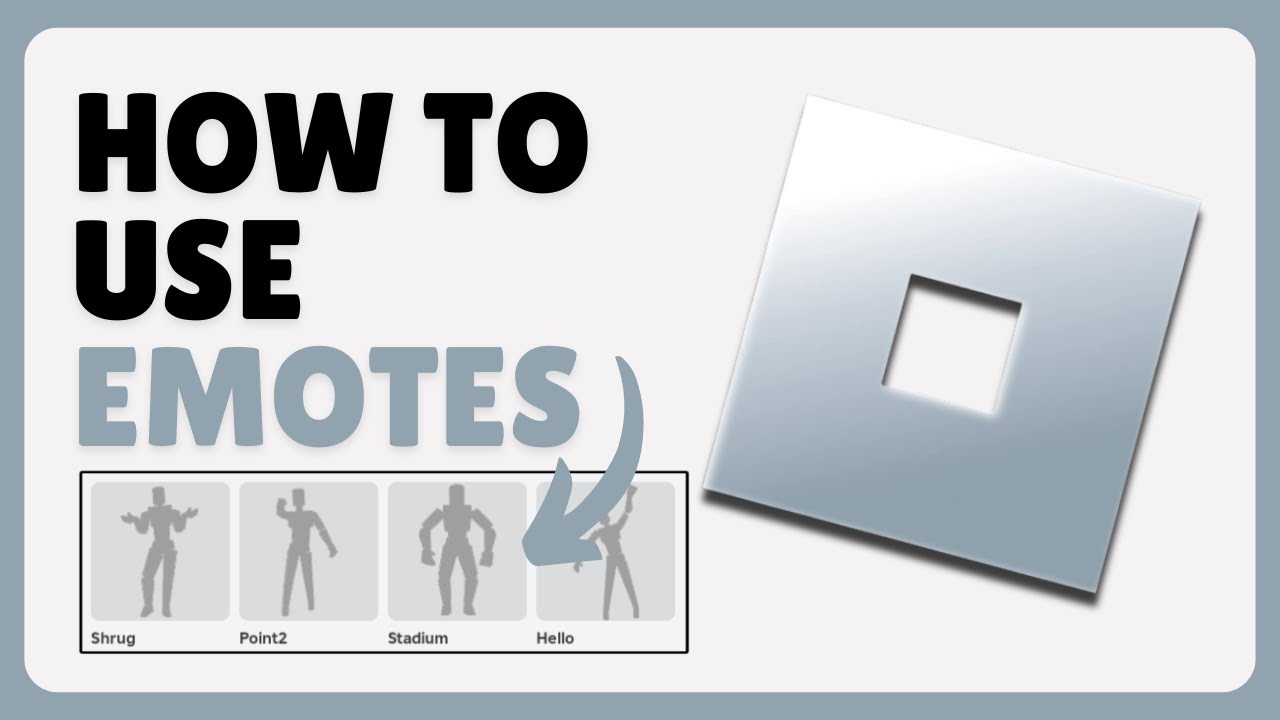
- Starter Emotes: All new Roblox accounts usually come with a few basic, free emotes already equipped, such as "Hello" or "Wave." These are excellent for getting started with basic communication.
- Game-Specific Rewards: Some individual Roblox games (experiences) offer unique emotes as rewards for completing in-game achievements, participating in events, or reaching certain milestones. Explore popular games and their event pages for opportunities.
Remember, staying current with Roblox news and active communities can give you a heads-up on new free emote opportunities, allowing you to maximize value for your gaming time and budget.
How do I use emotes in-game on PC, mobile, and console?
Using your equipped emotes is where the fun truly begins. The method differs across devices, reflecting the diverse ways US gamers play, from quick mobile sessions to dedicated PC or console play.
On PC/Mac:
- While in a Roblox experience, press the "/" key to open the chat window.
- Type "/e" followed by the name of the emote. For example, typing "/e dance" will make your avatar perform a dance.
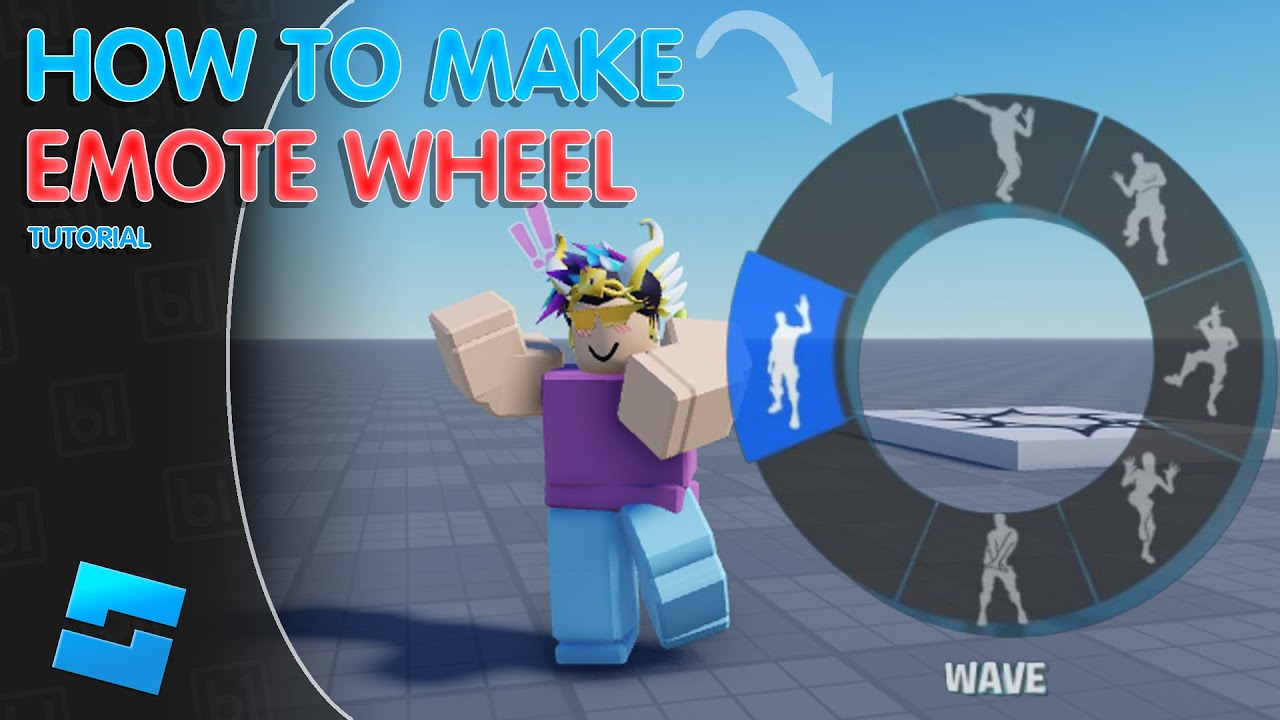
- Alternatively, click the emote icon (often a small dancing figure or an expression bubble) in the top-left or bottom-left corner of your screen. This will open an emote wheel or menu where you can click on the desired emote. The "/e" commands are generally faster if you know the emote name.
On Mobile (iOS/Android) and Tablet:
- Tap the emote icon, usually located near the chat bubble or a dedicated button on your screen.
- This will bring up an emote wheel or a list of your equipped emotes. Tap the one you want to perform.
- For some games, you might still have the option to type "/e [emote name]" in the chat, but the on-screen button is generally more convenient for touchscreens.
On Xbox/PlayStation:
- During gameplay, press the designated button to open the emote wheel. This is typically the 'Up' arrow on the D-pad for Xbox, or a specific button mapped on PlayStation.
- Once the wheel appears, use your controller's joystick or D-pad to select the emote you wish to perform, then release the button.
- Console controls are designed for quick, intuitive access, ensuring you can react in real-time during your gaming sessions.
Practicing these commands will make emoting second nature, allowing for seamless self-expression and interaction during your valuable gaming downtime.
What are some popular or trending Roblox emotes right now?
Staying current with what's popular is part of the fun in online gaming, especially for social platforms like Roblox where trends can shift quickly. While specific trends can change month-to-month, some emotes maintain perennial popularity due to their humor, versatility, or cultural relevance. For instance, dances are always a hit. Emotes like "Floss," "Orange Justice," or newer TikTok-inspired moves often cycle through popularity. "Hello," "Wave," and "Point" remain essential for basic communication.
Currently, social gaming trends favor expressive, fun interactions. Look out for emotes that allow for collaborative movements or funny reactions. Many YouTubers and Roblox content creators showcase new and trending emotes, so watching popular channels can be a great way to discover what’s hot. Also, keep an eye on the "Top Selling" or "Trending" sections within the Avatar Shop for an up-to-date look at what fellow gamers are buying and using. These often reflect what's resonating with the broader community, enhancing your ability to connect and share in the fun.
Can I create my own custom emotes or animated poses in Roblox?
The idea of creating truly custom emotes that only you (or your group) can use is a fantastic one, appealing to the creative spirit of many gamers. As of now, Roblox primarily offers a curated selection of official emotes that can be purchased or earned. Players cannot directly create and upload entirely new, personalized animated emotes for their avatars that function like official ones for general use.
However, there are ways to achieve a degree of "customization" and unique expression:
- Game Developers: If you're a game developer on Roblox (using Roblox Studio), you can create custom animations and integrate them into your own game experience. These animations would be specific to your game and can be triggered by scripts, offering unique actions for players within that specific world.
- Roleplaying & Pose Packs: Many roleplaying games offer built-in pose menus or custom animation packs that simulate emotes, allowing for extensive character expression. These are game-specific but provide a rich array of actions.
- Combinations: Experiment with combining existing emotes with other avatar animations or accessories to create unique visual effects. While not a custom emote, it can give a personalized flair.
While a "create your own emote" feature for widespread use isn't available, the community's creativity thrives through game-specific animations and imaginative use of existing assets. Keeping an eye on Roblox's continuous updates is always a good idea, as they often introduce new customization options.
How do emotes enhance social interaction and community in Roblox?
For adult gamers, social interaction in games like Roblox isn't just about competition; it's about building connections, unwinding with friends, and finding a sense of community. Emotes play a crucial role in fostering this. They act as immediate, visual cues that convey emotion, intent, and personality far more effectively than text chat alone, especially for quick interactions.
Consider these points:
- Instant Connection: A quick wave or dance can acknowledge another player without breaking game flow, making strangers feel like part of the community.
- Emotional Expression: Celebrate a win, express confusion, show excitement, or even playfully taunt – all without a single word. This adds depth to interactions.
- Breaking Language Barriers: Emotes are universal. A "thumbs up" means the same regardless of spoken language, making cross-cultural interactions smoother in Roblox's global player base.
- Humor & Lightheartedness: Many emotes are designed to be funny, injecting humor into interactions and relieving tension, which is perfect for stress relief after a long day.
- Group Cohesion: Performing synchronized dances or reactions with friends strengthens group identity and shared fun, enhancing the social aspect that 60% of US gamers value deeply.
By providing a rich layer of non-verbal communication, emotes transform simple gameplay into a vibrant, interactive social experience, perfect for connecting with fellow gamers in limited free time.
What if my emotes aren't working? Troubleshooting common issues.
It's frustrating when you're ready to bust a move or wave hello, and your emotes just aren't firing. This is a common pain point for gamers, and thankfully, most issues are easy to troubleshoot. Here are some quick fixes:
- Check Equipped Slots: First, ensure the emote you want to use is actually equipped in your Avatar Editor. If it’s not in one of your 8 active slots, you won’t be able to use it in-game.
- Correct Command/Button: Double-check that you're using the correct command ("/e [emote name]") or pressing the right on-screen/controller button for your device. A typo or wrong button press is a frequent culprit.
- Game-Specific Restrictions: Some Roblox experiences (games) might temporarily disable emotes or replace them with their own custom animations. This is less common but can happen. Check the game's description or settings.
- Roblox Glitch/Bug: Occasionally, a temporary client-side glitch might occur. Try leaving the game and rejoining, or even restarting the Roblox application entirely.
- Internet Connection: A lagging or unstable internet connection can sometimes interfere with game functions, including emotes. Ensure you have a stable connection.
- Clear Cache/Reinstall (Last Resort): For persistent issues, clearing your Roblox cache or, as a final step, reinstalling the Roblox player (on PC) or app (on mobile) can resolve deeper corruption problems.
Most emote issues are minor and quickly resolved, getting you back to expressing yourself in no time. For adult gamers who value efficient problem-solving, these steps help maximize enjoyment during precious gaming hours.
Mastering how to roblox emote is more than just learning a few commands; it’s about unlocking a richer, more expressive, and deeply social gaming experience. For busy adults, gaming offers a vital space for relaxation and connection, and emotes enhance this by providing instant, fun ways to interact with friends and the wider Roblox community. From understanding where to find and equip your favorite animations to troubleshooting common hiccups, you now have the tools to make your avatar truly your own and engage seamlessly with the vibrant worlds of Roblox. Embrace the power of expression, connect with others, and add another layer of fun to your valuable gaming time.
What’s your favorite Roblox emote to use, or what’s your biggest gaming challenge when it comes to social interactions? Comment below!
FAQ: Quick Answers to Your Emote Questions
Got more burning questions about how to roblox emote? Here are some quick answers to common queries for busy gamers:
What are the basic Roblox emote commands?
The most common command is "/e" followed by the emote's name, like "/e dance" or "/e wave." Many games also feature an on-screen emote button or wheel for easier access, especially on mobile and console.
How many emotes can I equip at once in Roblox?
You can typically equip up to 8 emotes in your avatar's quick-access slots. These are the emotes that will appear in your in-game emote menu or can be triggered with specific commands/buttons.
Can I get exclusive emotes from specific Roblox games?
Yes, many Roblox experiences offer unique emotes as rewards for completing quests, participating in events, or reaching certain milestones within that particular game. Always check game descriptions for these special opportunities.
Do purchased emotes work in all Roblox games?
Generally, yes. Emotes purchased from the Avatar Shop or earned officially are usually universal and can be used across most Roblox experiences. However, some games might have specific restrictions or override default emotes with their own.
Is there a way to preview emotes before buying them?
Absolutely! In the Roblox Avatar Shop, when you view an emote, there's usually a "Try On" or "Equip" button that allows your avatar to perform the animation in a preview window before you commit to purchasing it with Robux.
Why don't my emotes show up in the Avatar Editor?
If your emotes aren't appearing, ensure you're on the "Animations" or "Emotes" tab within the Avatar Editor. Sometimes, a page refresh or re-logging into Roblox can help synchronize your items. Also, verify that the purchase was successful if it was a new item.
Are emotes cross-platform? If I buy on PC, can I use on mobile?
Yes, emotes are tied to your Roblox account, not the device. If you purchase or earn an emote on PC, it will be available to equip and use on your mobile, console, or any other device where you log into that same Roblox account.
Mastering Roblox emotes is key for social interaction and personalization. Learn to find, equip, and use emotes on PC, mobile, and console. Discover free emote options and troubleshoot common issues. Enhance your gaming experience by expressing yourself with ease and staying current with trending animations. Quick tips help busy gamers maximize fun and connection.
35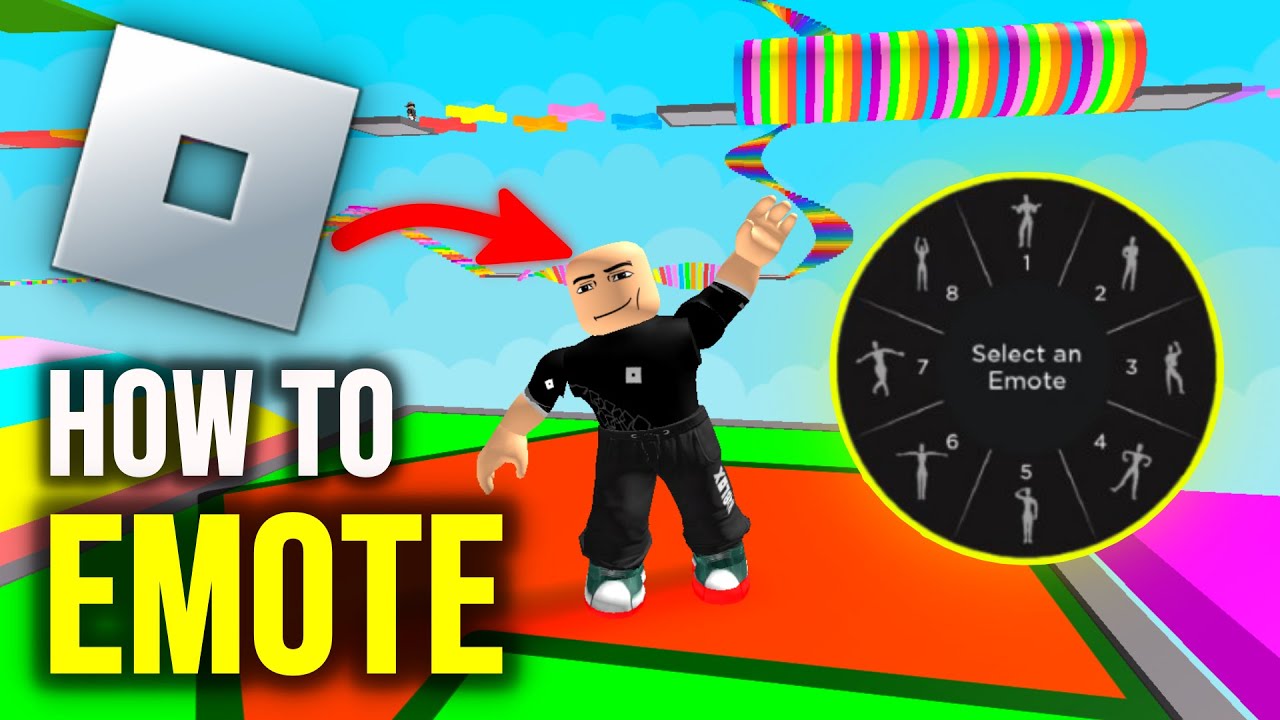


How To Emote In Roblox Full Guide 2026 YouTube . Emote Catalog Roblox NoFilter. How To Make A Pet The Emote At Anthony Sears Blog . Roblox Emote RNG Codes June 2026 TechWiser Roblox Emote RNG Codes .webp. How To Use Emotes In Roblox 2026 YouTube


Roblox Emote RNG Codes June 2026 15 NEW Codes Available Roblox Emote RNG Codes . How To Switch Your Roblox Avatar To R15 Use Emotes Properly 2026 . Emote Catalog Roblox NoFilter. How To Emote In Roblox PC Mobile IPad Console YouTube . Emote Wheel Tutorial Advanced Roblox Scripting Tutorial YouTube


How To Unlock Equip And Use Free Emotes In Roblox YouTube . How To Use The EMOTES In Roblox On PC Easy Tutorial YouTube . HOW TO GET FREE EMOTES AND ANIMATIONS ON ROBLOX 2026 YouTube . ROBLOX ADDED DANCES EMOTES How To Equip Roblox Emotes YouTube . How To Make Emotes In Roblox Roblox YouTube Oardefault



How To Emote In Roblox Tips YouTube . How To Use Emotes In Roblox R14 2 . ROBLOX How To Equip Use Emotes 2026 Roblox Den Image A3732d7de4 . Jak Ta Czy W Roblox Przewodnik Po Emotkach I Komendach 73e2c8e4 Eb38 4fb5 8e4c. FREE Emote Wheel System Roblox Studio YouTube


TRENDY VIRAL DANCE EMOTES FOR BERRY AVE ROBLOX YouTube . How To Get Emotes In Knockout Roblox 5 Easy Ways 2026 How To Get Emotes In Knockout Roblox . How To Dance In Roblox Emotes Commands Guide C3ac94fa 1790 4901 93ce Webp.webp. List Of Emotes At Mikayla Raggatt Blog ??????????? 2022 04 05 225948 . How To Publish And Sell Roblox Custom Emote Emo 11 360x180

How To Dance In Roblox Emotes Commands Guide 74214387 A42c 404e 9efe. Emote RNG Codes Codes June 2026 NoFilter. Death Penalty Roblox Emote Like A Pro . How To Get Emotes In Knockout Roblox 5 Easy Ways 2026 Knockout Roblox Emote Button Gameplay . How To Dance On Roblox All You Need To Know About Emotes How To Dance In
How To Emote In Roblox Wheel Commands Roblox Database Emote In Roblox . ROBLOX How To Equip Use Emotes 2026 Roblox Den Image 46462ebd2f . How To Emote In Roblox Blade Ball June 2026 MrGuider How To Emote In Roblox Blade Ball 768x429 . Top 99 Emote Avatar Roblox Ang G Y S T Tr N M Ng . How To Use Easy Emote The Easiest Way To Animate NPCs Bulletin 2 1024x1024